
Projects
Add a Project
Create a Project and its first named Activity, or start another Activity inside an existing Project.
1. Open and understand the formG-PRJ-ADD-OAUTNQ
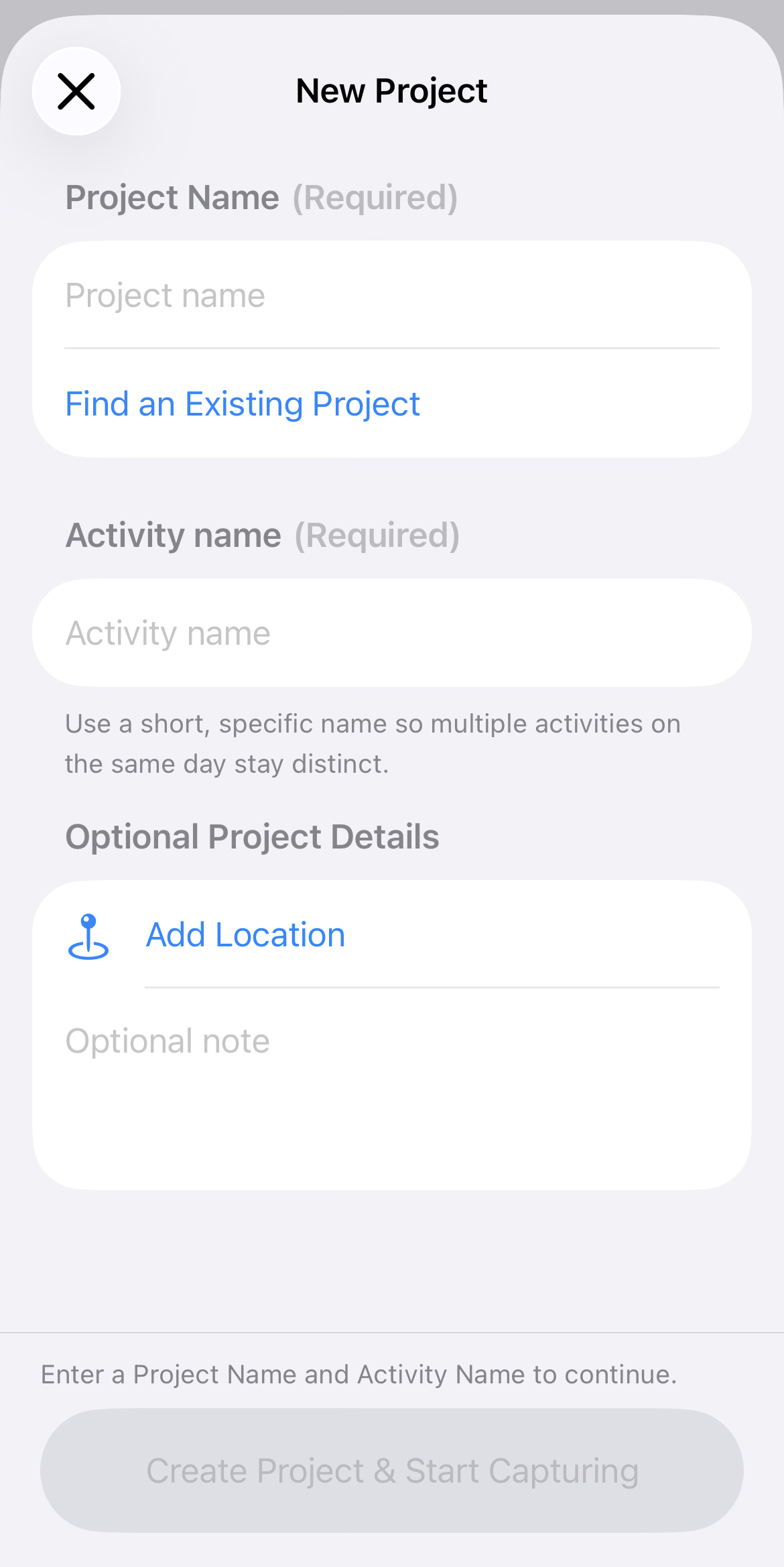
Select the plus button on the Projects screen to open New Project. Close returns to Projects. If the form is still empty, it closes immediately.
Project Name and Activity name are required. Location and the Project note are optional. The action at the bottom stays disabled until both required fields contain text.
2. Enter the Project NameG-PRJ-ADD-PNGF
Enter a stable name for the overall job or work site, not the individual task being performed today. Leading and trailing spaces are removed before saving.
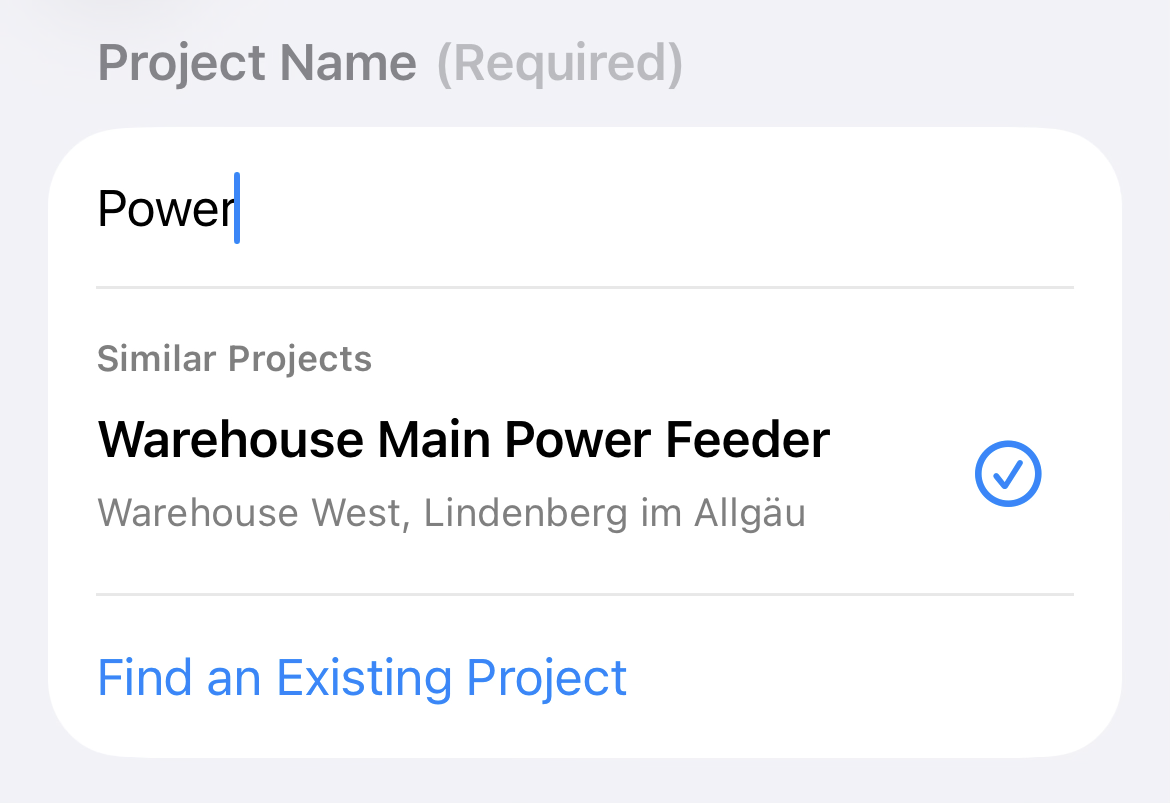
As you type, WerkLog searches active Projects by name and saved location. Up to three Similar Projects can appear, with the most recently updated matches first. Archived Projects do not appear in these inline suggestions.
Select a suggested row if this work belongs to that existing Project. This prevents separate Projects from being created for the same job.
3. Find an existing ProjectG-PRJ-ADD-FEPIJ
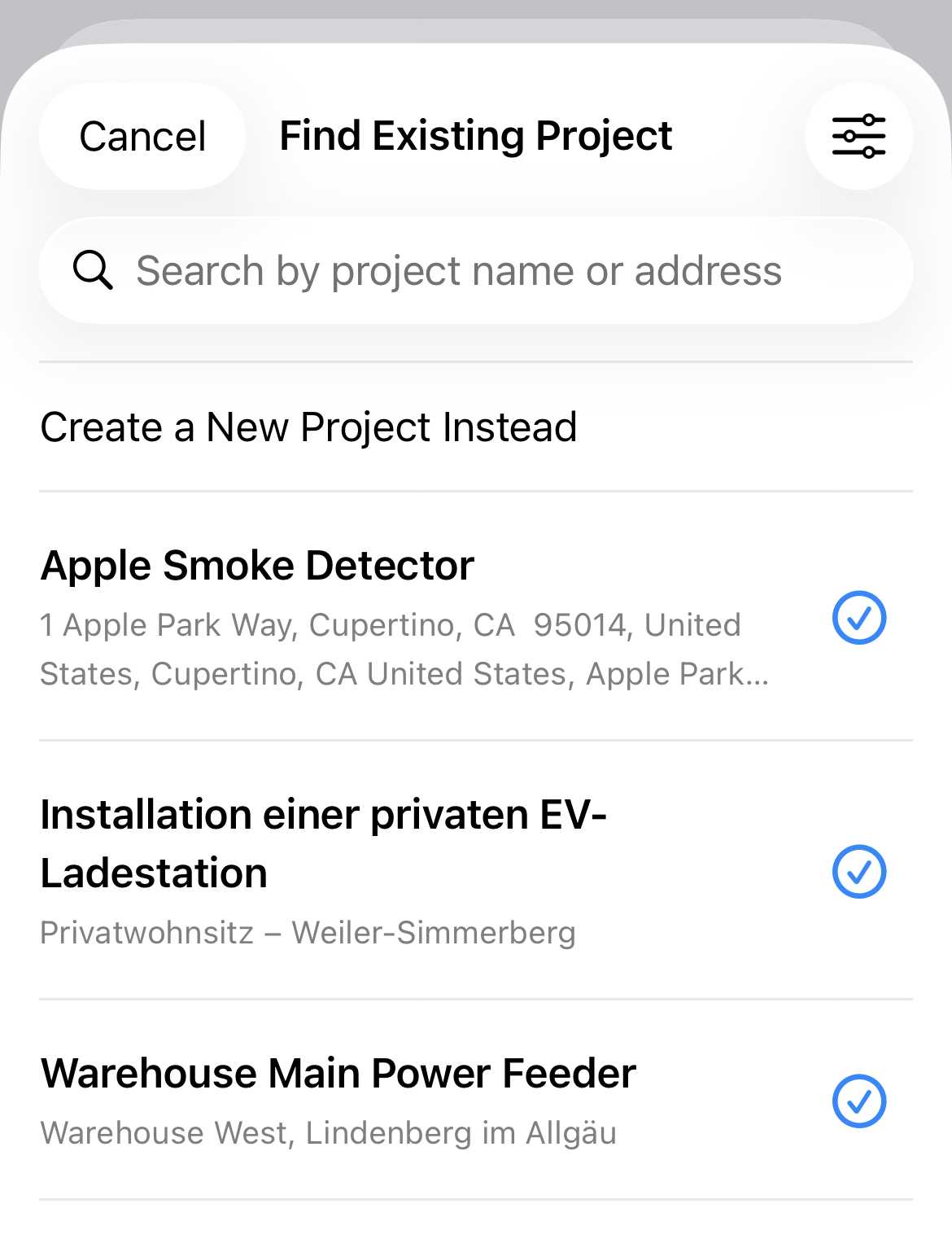
Select Find an Existing Project for the complete active Project list. Search accepts Project names and saved addresses. Selecting Cancel returns to the New Project form without deleting its current draft.
If no Project matches the query, a native no-results state appears. Clear or change the query to restore results.
After an existing Project has been selected, this sheet also offers Create a New Project Instead. That action restores the new Project name draft that existed before the selection.
4. Sort the existing Project listG-PRJ-ADD-SEP19
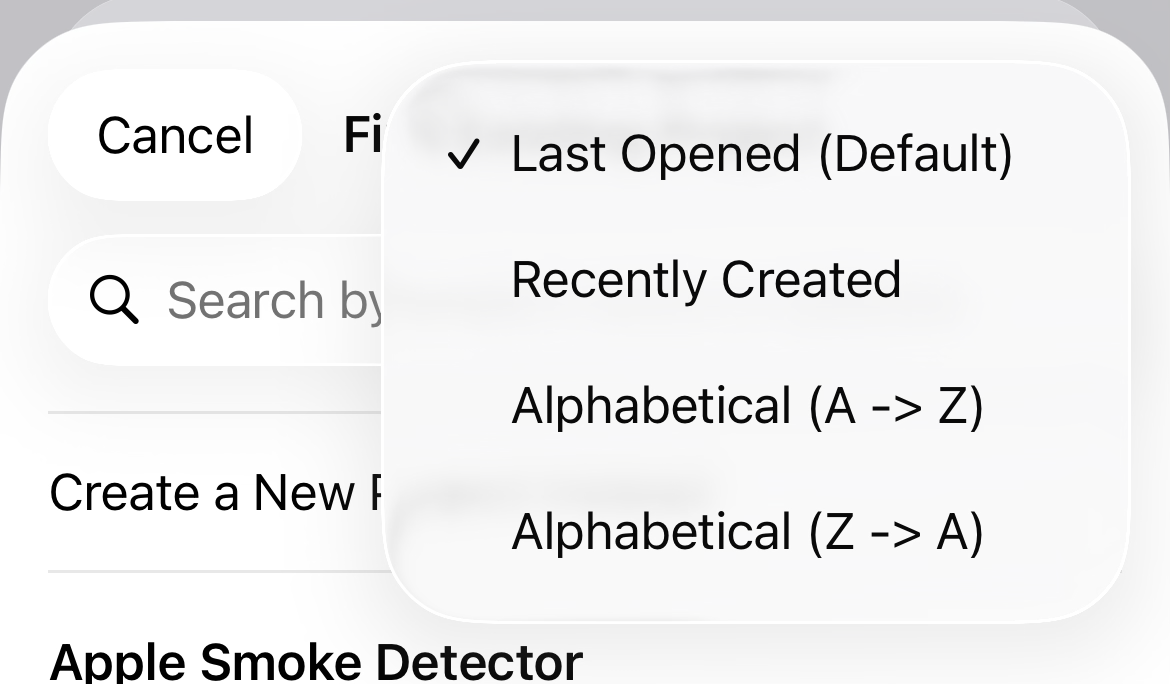
Open the filter control in Find Existing Project to change the order without changing Project data.
- Last Opened is the default and places the most recently updated Project first.
- Recently Created orders Projects by creation date.
- Alphabetical (A -> Z) sorts names in ascending order.
- Alphabetical (Z -> A) sorts names in descending order.
5. Use a selected existing ProjectG-PRJ-ADD-SEPT5
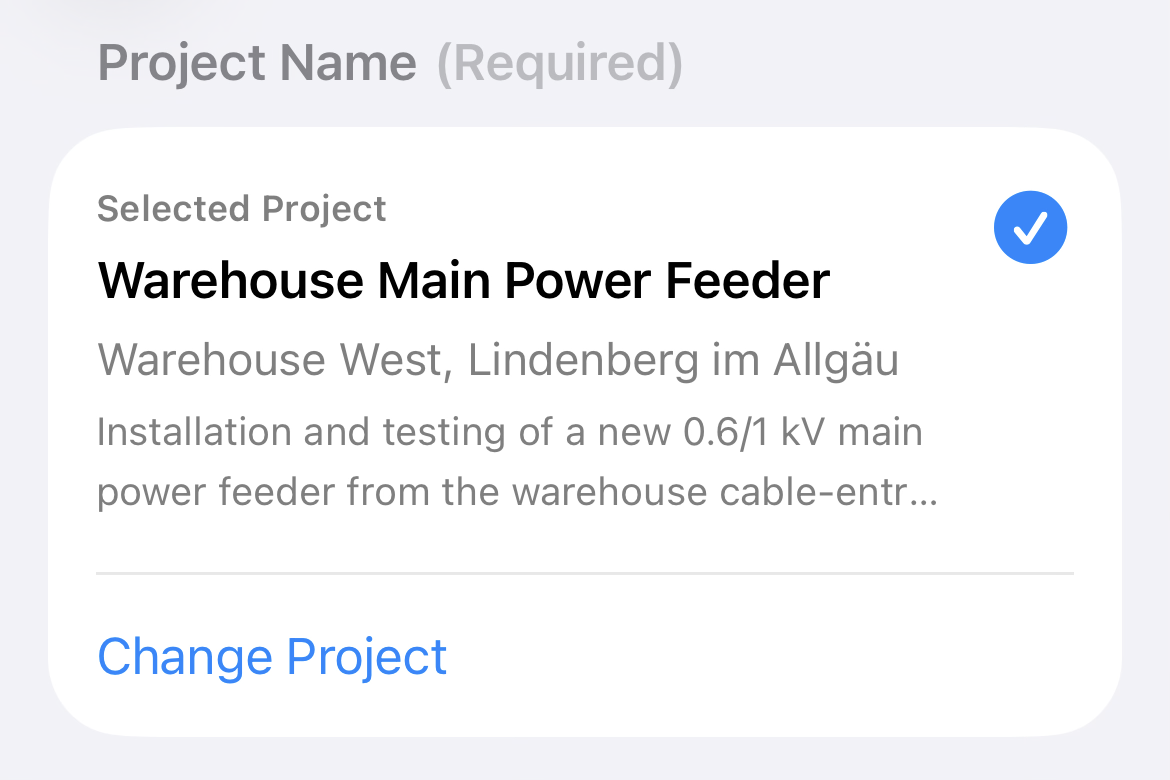
After selection, the Project Name field becomes a Selected Project summary. It can show the Project name, location and up to two lines of its existing Project note.
Select Change Project to choose a different Project or return to creating a new one. Optional Project Details disappear because the selected Project already owns its location and Project note. This form does not overwrite them.
Only Activity name remains required. The bottom action changes to Start Capturing and creates a fresh named Activity for today inside the selected Project.
6. Name the ActivityG-PRJ-ADD-ANY1
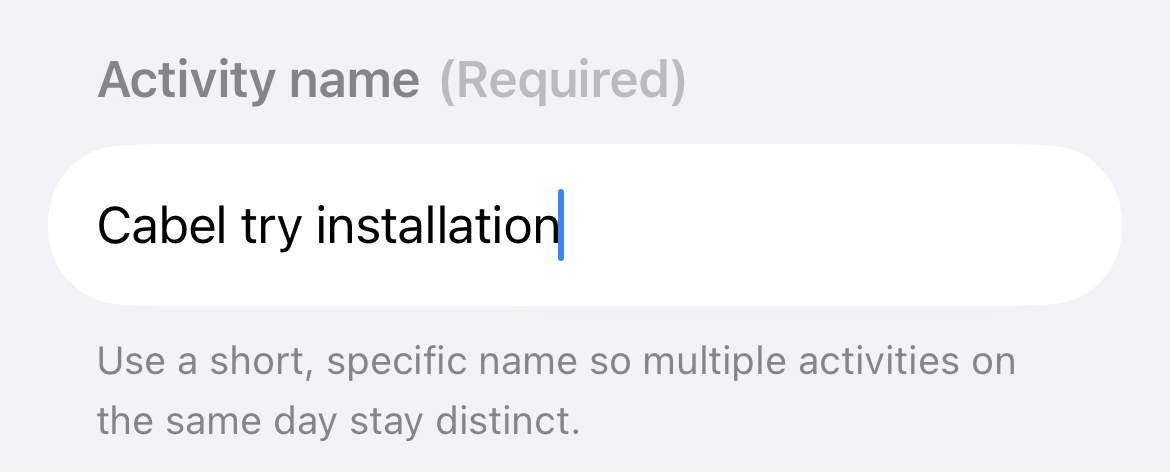
Activity name describes the specific work being captured now. Use a short, distinct description so multiple Activities on the same day remain easy to tell apart.
For a new Project, this becomes its first Timeline. For a selected Project, it becomes a fresh Timeline for today's additional Activity. Pressing Next from Project Name moves keyboard focus here; pressing Done ends text entry.
7. Add an optional LocationG-PRJ-ADD-LMJC
Location belongs to a newly created Project and is optional. It can be left empty and completed later in Project Information.
In Essential Mode, enter an address or location as plain text. Map selection and its online controls stay hidden, while Project creation remains available offline.
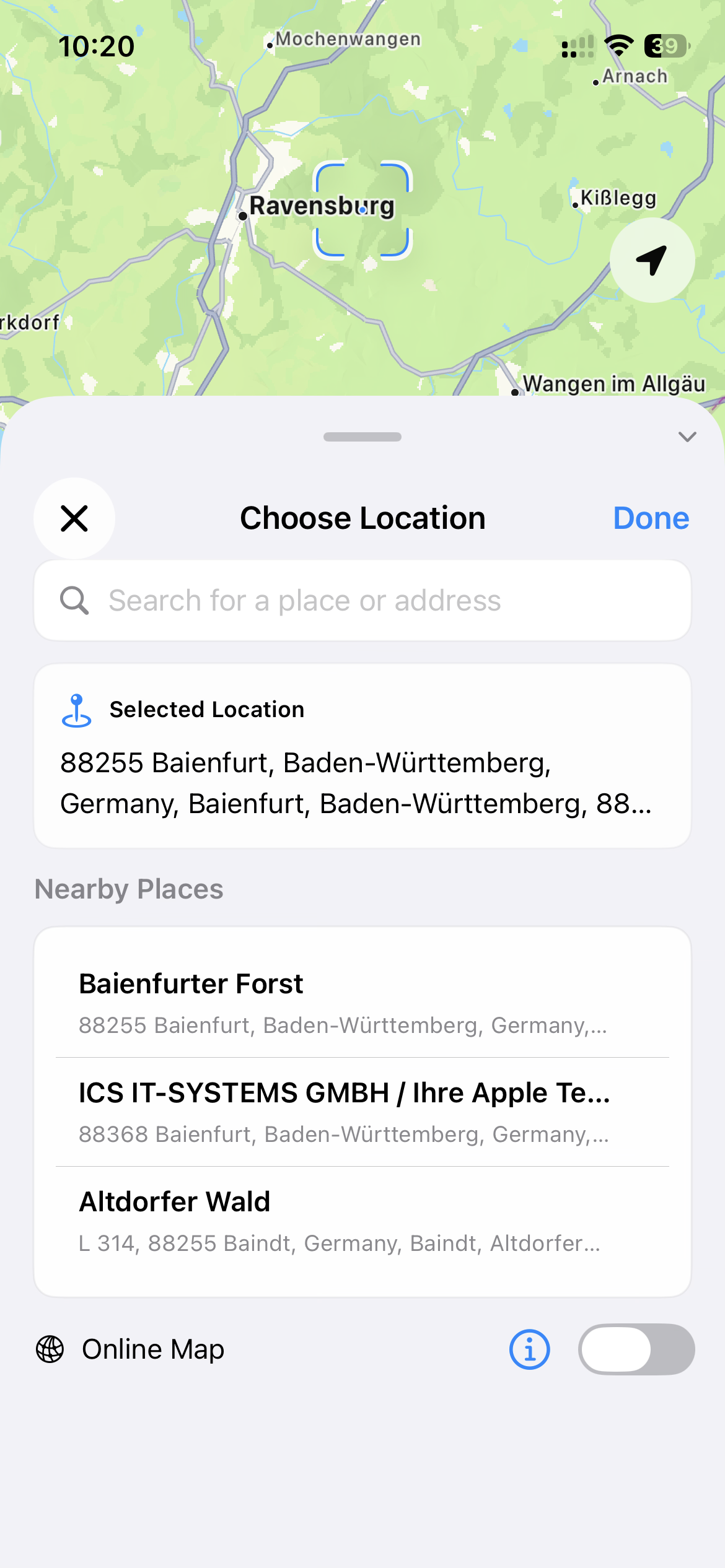
In Advanced Mode, select Add Location to open Choose Location. Search for a place or address, select a result, choose a Nearby Place, use Current Location when permission is available, or move the map until the viewfinder is over the required position.
The location panel supports minimized, compact and expanded states. Done saves the current selection back into the Project draft. Close cancels the picker and retains the previous selection.
- Search and Nearby Places may be unavailable without a suitable network response. Retry when offered, or move the map and save coordinates manually.
- Current Location may request system permission. If permission is denied or location is unavailable, manual map selection still works.
- Online Map starts disabled and applies only to the current location picker. Its information button explains that only the selected address and coordinates are saved locally.
- Reduce Motion removes the custom map and result transitions without removing any control.
8. Review or change the selected LocationG-PRJ-ADD-SLD30
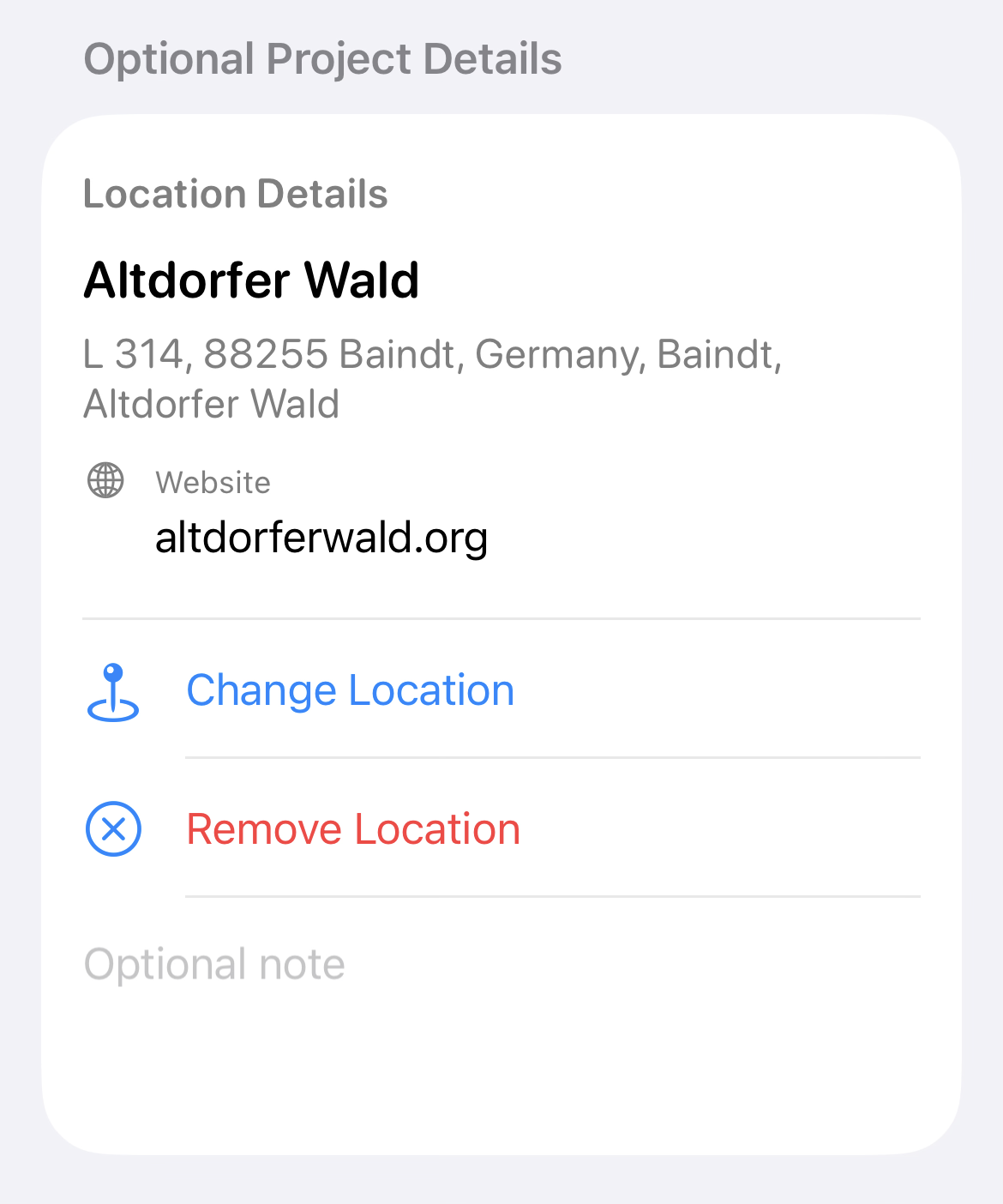
After a place is selected, Optional Project Details can show its place name, formatted address and any phone or website information supplied by the location result.
Select Change Location to reopen the picker with the current selection. Remove Location clears the address, coordinates and place details from this unsaved draft.
Phone and website values are displayed left to right for readability. Email is not available because the current Location data does not provide an email field.
9. Add an optional Project noteG-PRJ-ADD-PN06
Use Optional note for short context that applies to the whole Project, such as an access contact, site restriction or general instruction.
This note is Project information. It does not become a post inside today's Activity. Leading and trailing spaces are removed, and an empty note is not saved.
10. Check required fields and start capturingG-PRJ-ADD-VAPAT7
The guidance above the bottom button identifies what is missing: both names, Project Name only or Activity Name only. The action becomes available only when both required values remain non-empty after surrounding spaces are removed.
For a new Project, select Create Project & Start Capturing. WerkLog creates the Project and today's named Activity together, then opens its Timeline. For an existing Project, select Start Capturing to create and open the new Activity without duplicating the Project.
While saving, the button shows Creating or Starting with a progress indicator and blocks repeated activation. If local persistence fails, the form remains open and a native error alert displays the reason.
11. Respond to a possible duplicate warningG-PRJ-ADD-PDW4E
Before a new Project is saved, WerkLog performs a second duplicate check using matching name, address and nearby coordinates. This can find a conflict even when no inline suggestion was selected.
Open Existing Project opens the strongest match instead. Create Anyway confirms that the new Project is intentional. Cancel returns to the unchanged draft. If the strongest match is archived, WerkLog opens its Project Information rather than starting active capture.
A screenshot of this confirmation is not yet included. It can be added later without changing this section's direct link.
12. Close, keep or discard the draftG-PRJ-ADD-DOKT94
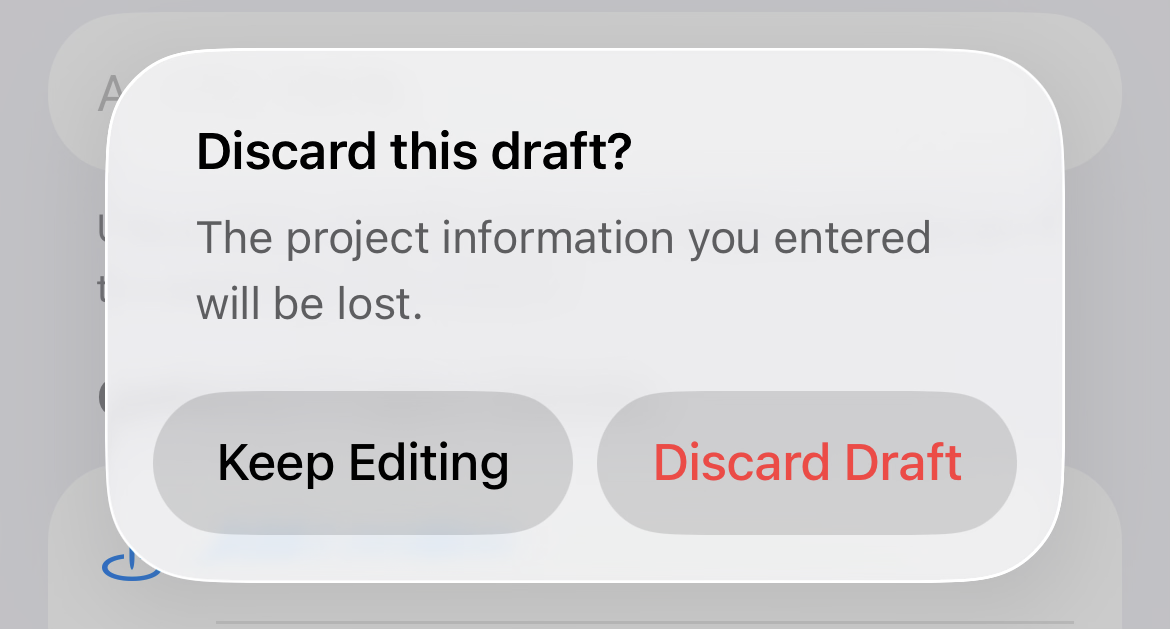
If any name, Location, Project note or selected existing Project is present, closing the form or attempting to swipe it down asks for confirmation.
Keep Editing returns to the draft. Discard Draft closes the form and permanently removes the unsaved information. The close action is unavailable while creation is in progress.
What is not part of Project creationG-PRJ-ADD-WINPPV
New Project intentionally does not ask for a client, category, budget, team, assignee, status, tags or task workflow. These are not hidden required steps. The form stays limited to the information needed to start a Timeline quickly.