
Main screen
Projects
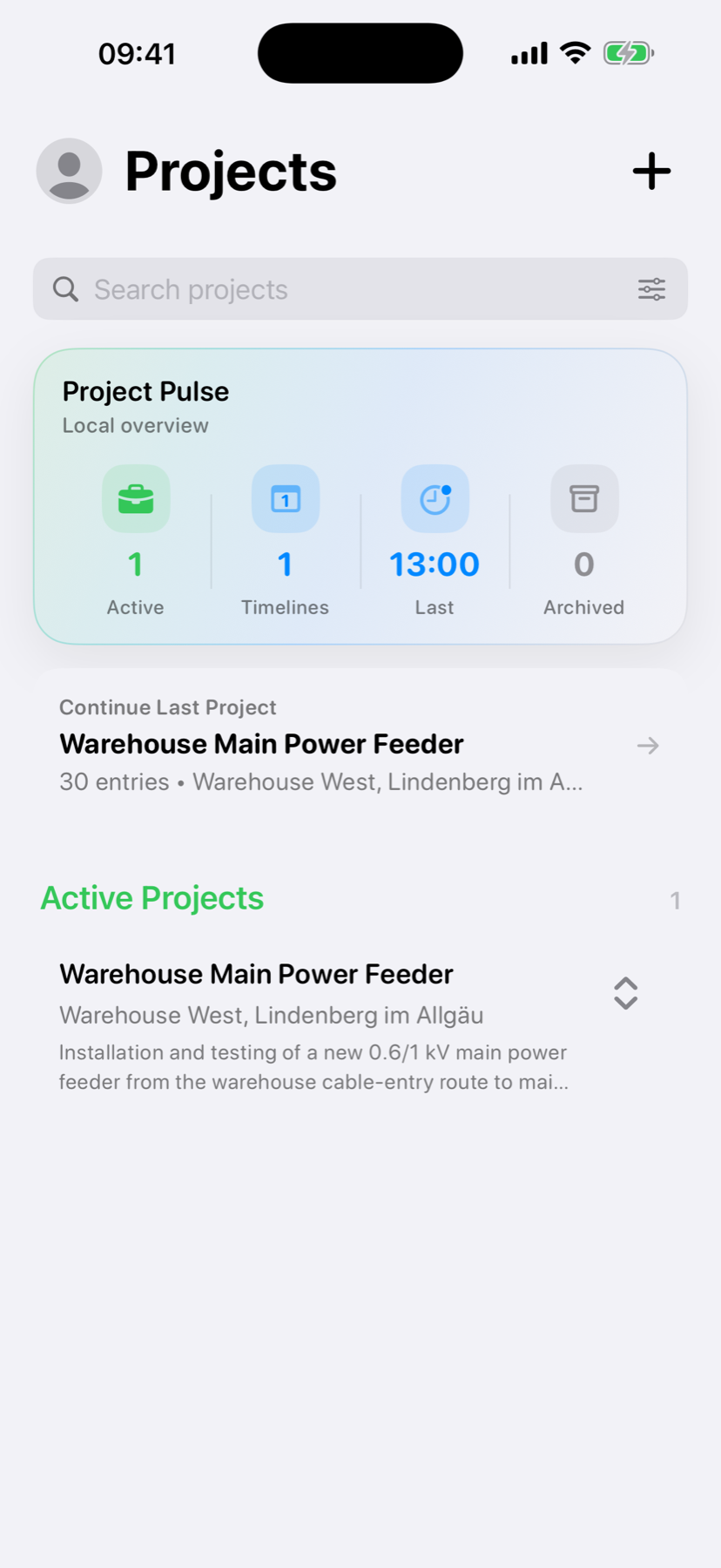
Projects is the starting screen for creating work, returning to an active Project and opening its Timelines.
Screen overviewG-PRJ-SOTM
The screen is arranged from quick actions at the top to the Project list below. The visible information updates from the Projects and Timelines stored on this device.
- Header and Add Project
- Search and optional filters
- Project Pulse
- Continue Last Project
- Active and archived Project sections
1. HeaderG-PRJ-HEABH
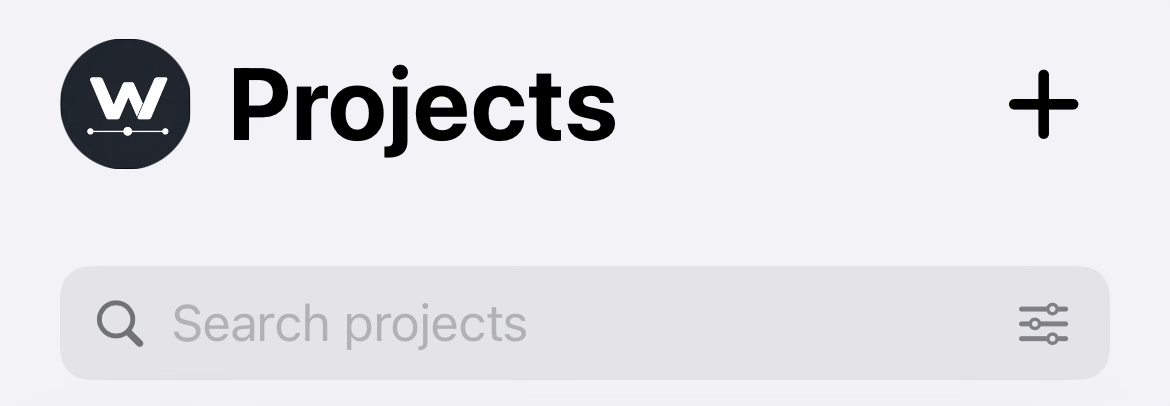
The profile button on the left opens Profile and Settings. The title confirms that you are on the Projects screen.
Select the plus button on the right to open Add Project. A new Project requires a Project Name and an Activity Title. The Activity Title becomes the first Timeline inside that Project.
2. Search and FiltersG-PRJ-SAFNK
Type a Project name, location or other saved Project wording into Search projects. The list updates without changing the stored Projects or Timelines.
Use the clear control inside the search field to return to the complete list.
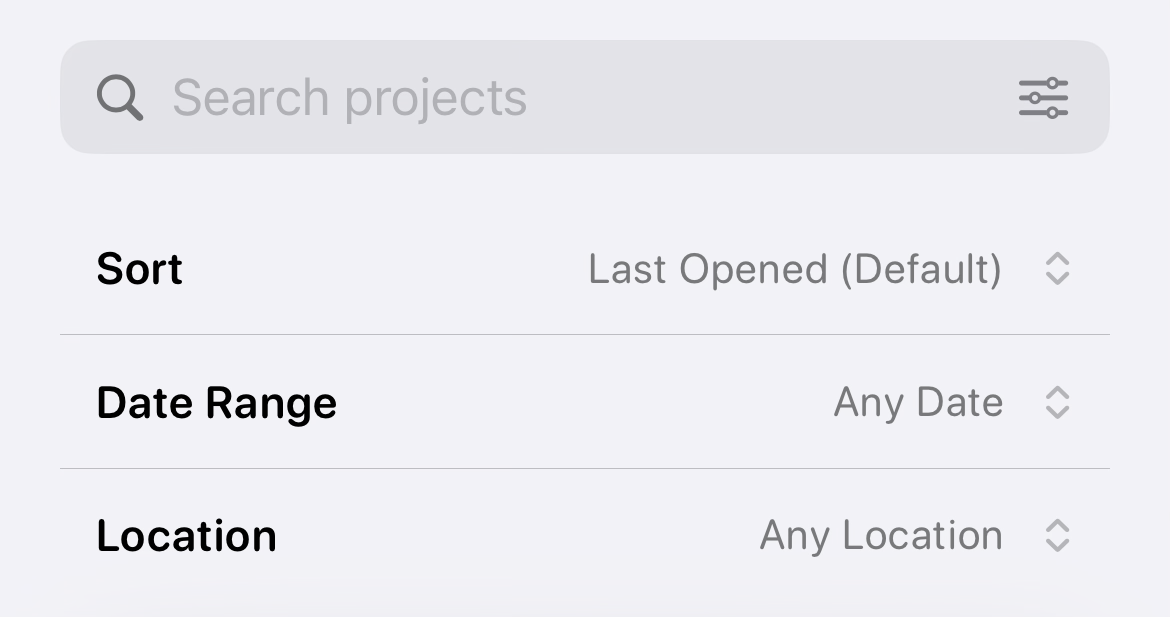
In Advanced Mode, the filter button appears at the right of the field. It can sort by Last Opened, Recently Created or alphabetical order, and can filter by date or whether a location is saved. Essential Mode keeps these advanced filters hidden.
3. Project PulseG-PRJ-PPVP
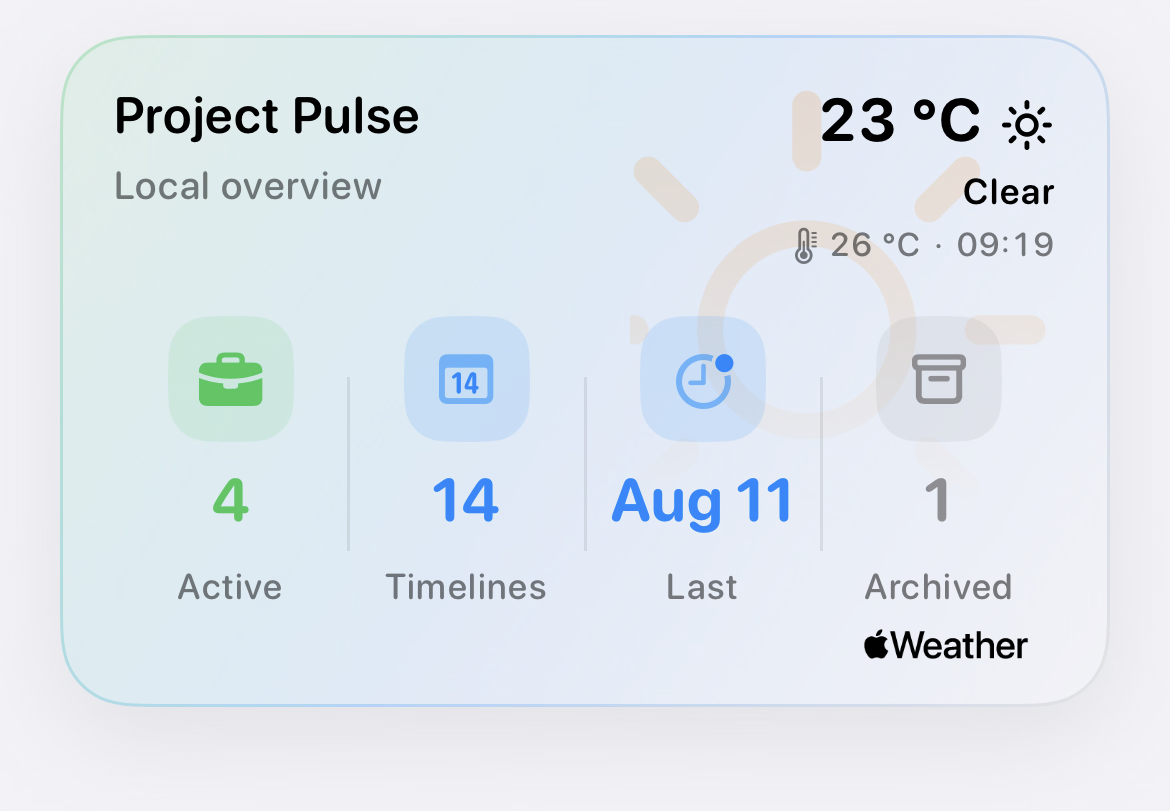
Project Pulse is a local overview of the current Project data. It does not create or modify a Project.
- Active is the number of Projects that are not archived.
- Timelines is the total number of Timelines across the Projects.
- Last shows the most recent recorded Project or Timeline activity.
- Archived is the number of archived Projects.
- When a local weather snapshot is available, current conditions can appear in the card. Selecting it opens the weather detail.
4. Continue Last ProjectG-PRJ-CLPW8
Continue Last Project is the fastest way to return to the most recently active Project. The card shows the Project name and, when available, the number of entries and a concise location.
Select the card to open the existing work. If the Project has more than one Timeline for today, WerkLog asks which Timeline to open or whether to create another Timeline. This action does not create a duplicate Project.
5. Active ProjectsG-PRJ-APCX
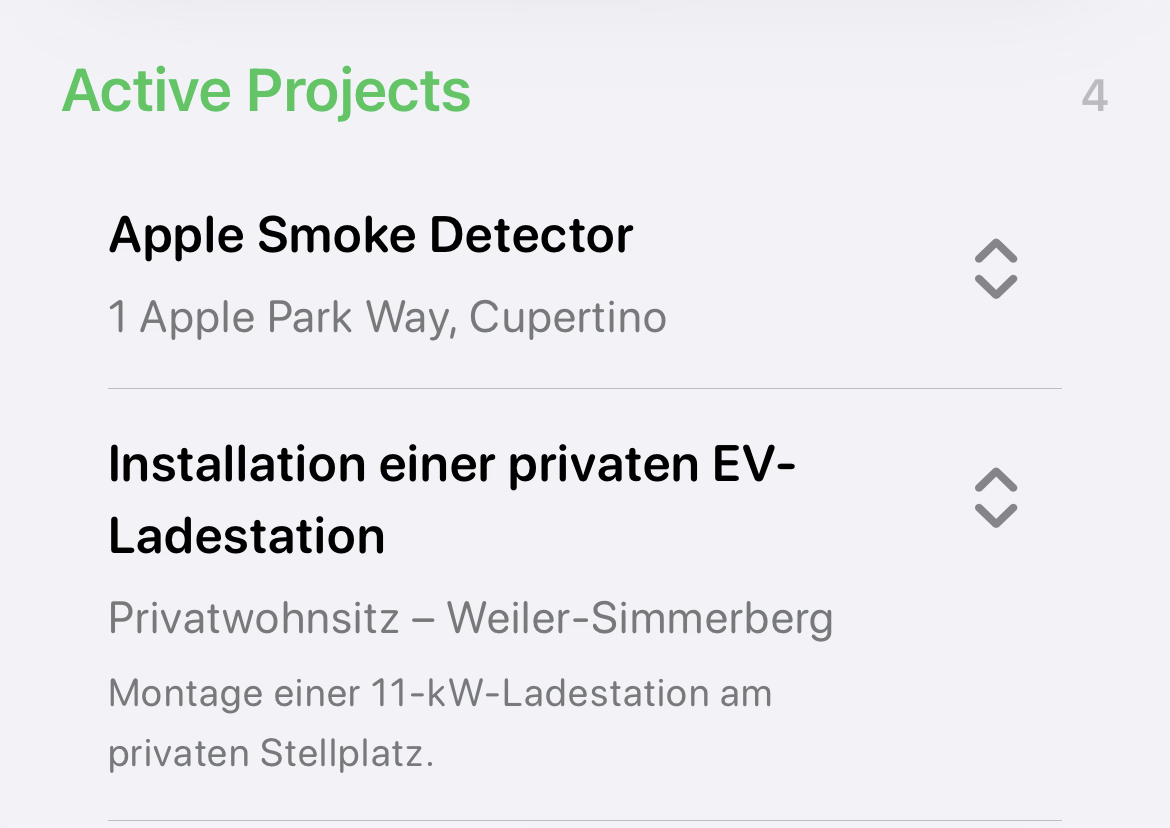
Active Projects contains Projects that have not been archived. The number at the right of the section title is the number of Projects in this section.
Each row shows the Project name. It can also show a concise address and up to two lines of the Project note. Select the main part of the row to continue the Project's current Timeline.
Select the disclosure control at the right of an active Project to show More Tools. Depending on the saved Project data, More Tools can open Timelines, the latest activity, Project Information, Plans and directions in Maps.
6. Active Project More ToolsG-PRJ-APMTA6
Select the disclosure control at the right of an active Project row to expand or hide More Tools. The control turns blue while the panel is open.
The available tiles are derived from the selected Project. Some tiles display a count or recent date, and Directions appears only when WerkLog has usable coordinates or an address.
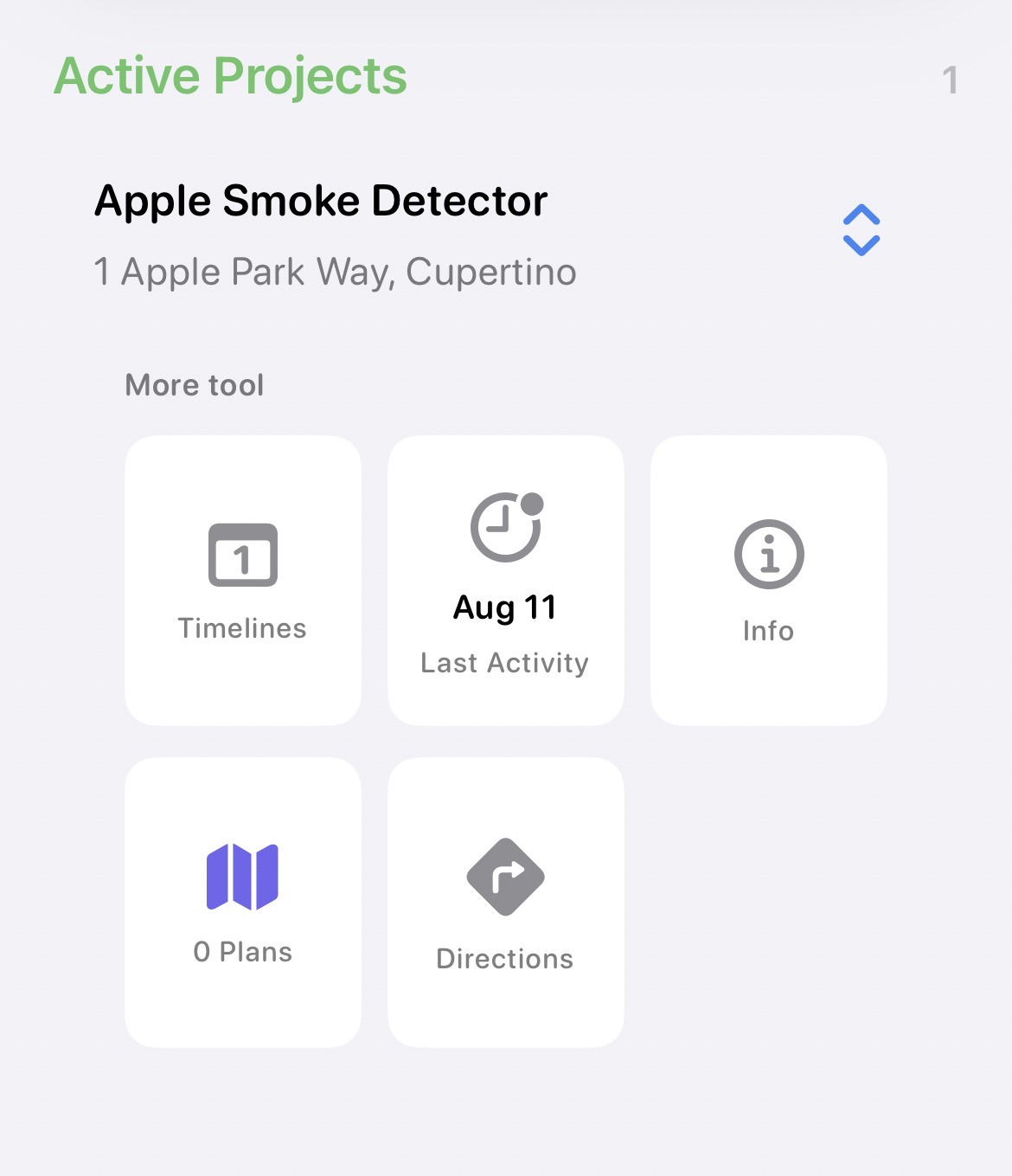
Timelines
Shows the number of Timelines in the Project. Select it to open Project Information at the Activity section and review the Project's Timeline history.
Last Activity
Displays the latest Activity label or date and opens that most recent work for the Project. This tile is omitted when no latest Activity label is available.
Info
Opens Project Information for the selected Project. Use it to review Project-level details such as location, note, metadata and Activity summary.
Plans
Shows the number of Project Plans and opens Plan Management. From there, Plans can be imported, previewed, renamed, shown or hidden in the picker, and deleted when they are not in use.
Directions
Opens Apple Maps with driving directions to the Project's saved coordinates or address. The tile stays hidden when the Project has no usable route destination.
7. Archived Projects and Previous TimelinesG-PRJ-APZ9
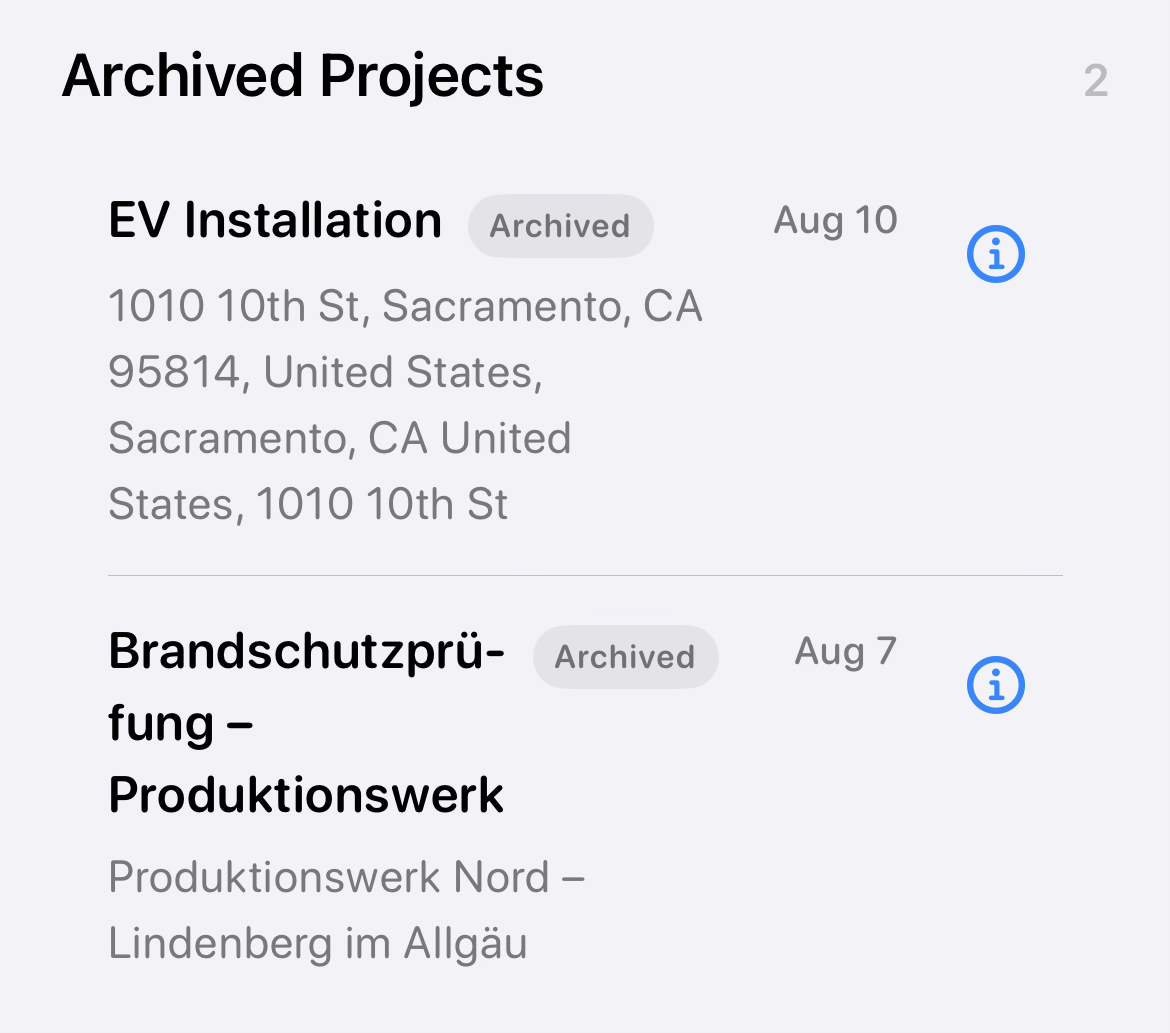
Archived Projects appears only when at least one Project has been archived. Selecting an archived Project opens Project Information instead of continuing active capture.
Previous Timelines appears when an active Project has older Timeline history outside the current Project row. Open it to browse that preserved history.
Archive is not Delete. Archiving keeps the Project and its Timelines available for review or restoration. Delete is a separate confirmed action and is available only when the Project can be removed safely.
Each archived row shows the Project name, archive status, date and saved location. Select its information button to open Project Information.
Project and Timeline are differentG-PRJ-PATCB
A Project stores stable information shared by the work, including its name, location and Project Note. A Timeline stores the chronological posts for one activity or work period inside that Project.
Opening Project Information changes Project-level context. Opening a Timeline continues capture for that activity.
Offline behaviorG-PRJ-OBWS
The Projects list and core Timeline capture use locally stored data and remain available without a network connection. Optional weather or provider information can be unavailable without blocking Project access.
In this section
- Add a ProjectCreate a Project and its first named Activity, or start another Activity inside an existing Project.
- Search and FiltersFind a Project by its saved information and narrow the visible list when needed.
- Continue WorkingReturn directly to the most recently active Project and continue its current work.
- Project Rows and TimelinesOpen a Project, review its activity and enter the correct Timeline.
- ArchiveKeep completed or older work separate without deleting its history.
- Project InformationReview or edit the stable information shared by all Timelines in a Project.